
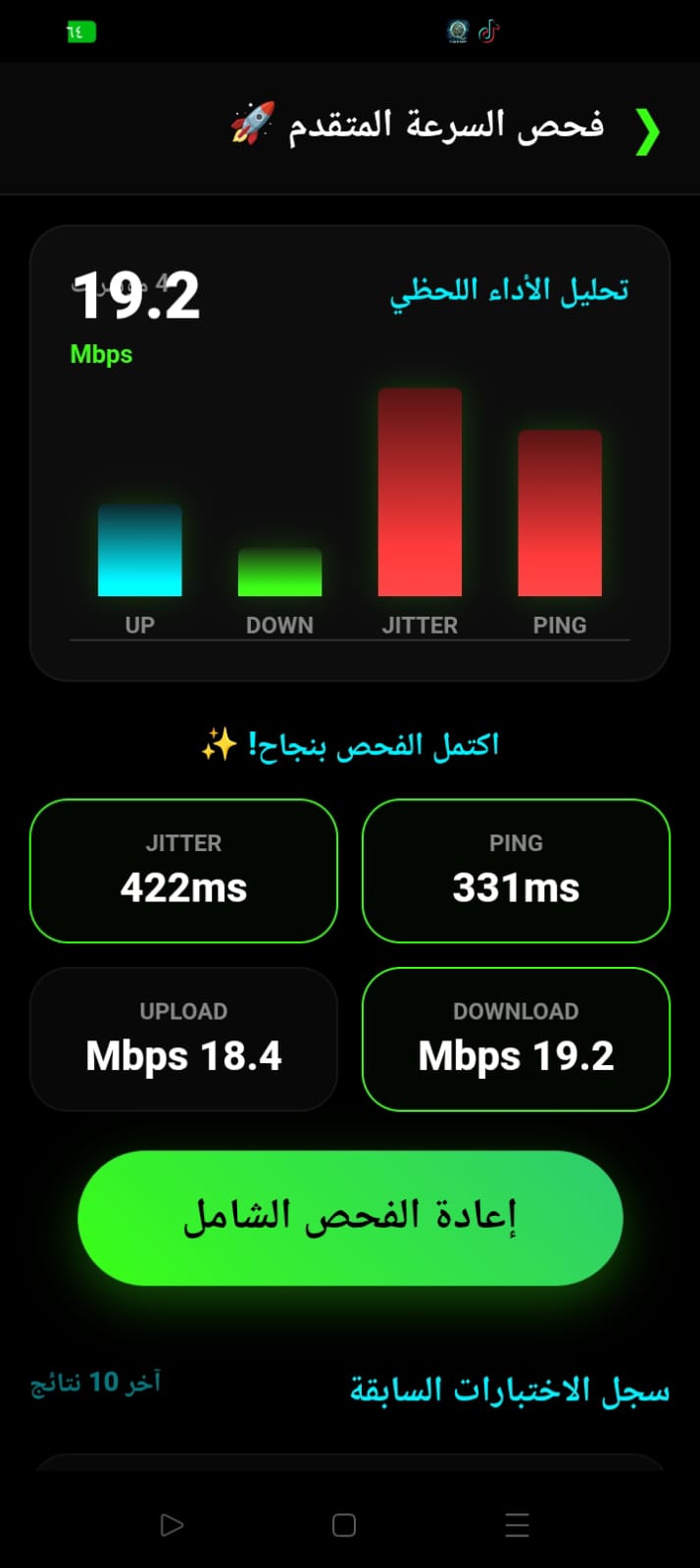
ما الذي يقيسه اختبار السرعة؟ What does a speed test measure?
يعرض فحص السرعة عدة مؤشرات تساعد على وصف الاتصال بين هاتفك ونقطة القياس. قراءة هذه المؤشرات معاً تعطي صورة أوضح من التركيز على رقم واحد، لكنها لا تحدد وحدها سبب كل مشكلة في الإنترنت. A speed test reports several metrics describing the connection between your phone and a measurement endpoint. Reading them together gives a clearer picture than focusing on one number, but they do not identify the cause of every internet issue on their own.
- Download: سرعة استقبال البيانات، وتؤثر في تنزيل الملفات وتشغيل المحتوى. تُعرض غالباً بوحدة Mbps. The rate at which data is received, affecting file downloads and streaming. It is commonly shown in Mbps.
- Upload: سرعة إرسال البيانات، وهي مهمة لمكالمات الفيديو ورفع الملفات والبث المباشر. The rate at which data is sent, important for video calls, file uploads, and live streaming.
- Ping: زمن استجابة الاتصال إلى نقطة القياس، ويُعرض عادةً بالمللي ثانية. انخفاضه يعني استجابة أسرع إلى تلك النقطة، لا بالضرورة إلى كل خادم أو لعبة. The connection response time to the measurement endpoint, usually shown in milliseconds. A lower value means a faster response to that endpoint, not necessarily to every server or game.
- Jitter: مقدار اختلاف زمن الاستجابة بين القياسات. انخفاض التذبذب يساعد على اتساق الاتصال، خصوصاً للمكالمات والألعاب. How much response time varies between measurements. Lower jitter helps keep a connection consistent, especially for calls and gaming.
كيف تحصل على نتائج قابلة للمقارنة؟ How to get comparable results
- أوقف مؤقتاً التنزيلات والبث الذي لا تحتاجه، واطلب من الآخرين على الشبكة تقليل الاستخدام الكثيف أثناء الاختبار. Pause downloads and streaming you do not need, and ask others on the network to reduce heavy usage during the test.
- أجرِ الاختبار في المكان نفسه وبالجهاز نفسه، ثم كرره أكثر من مرة؛ فالنتيجة المفردة قد تتأثر بتغيرات مؤقتة. Test in the same location on the same device, and repeat the test; a single result can be affected by temporary conditions.
- قارن القياس قرب الراوتر بقياس مكان الاستخدام. فرق النتائج قد يشير إلى تغطية Wi-Fi أو تداخل محلي، وليس بالضرورة إلى مشكلة في باقة الإنترنت. Compare a test near the router with one where you normally use the device. A difference may point to Wi-Fi coverage or local interference rather than an issue with your internet plan.
- سجّل وقت الاختبار ونوع الاتصال، مثل Wi-Fi أو بيانات الهاتف، حتى تكون المقارنة مفيدة. Note the test time and connection type, such as Wi-Fi or mobile data, so comparisons are meaningful.
ما العوامل التي تؤثر في القياس؟ What can affect the measurement?
قد تتغير النتائج بسبب ازدحام الشبكة أو إشارة Wi-Fi أو قدرات الهاتف والراوتر أو مسار الاتصال وموقع خادم الاختبار. كما أن الاختبار يقيس الاتصال إلى نقطة محددة؛ لذلك قد تختلف تجربة تطبيق أو لعبة تتصل بخادم آخر. Results can vary with network congestion, Wi-Fi signal, phone and router capabilities, the network route, and the test-server location. A test measures the connection to a specific endpoint, so an app or game connected to another server may feel different.
لا يضمن اختيار خادم قريب أفضل نتيجة في كل مرة، كما لا يثبت اختبار السرعة وحده أن مزود الإنترنت مسؤول عن البطء. استخدم أكثر من قياس، وقارن بين Wi-Fi وبيانات الهاتف عند الإمكان. A nearby test server does not guarantee the best result every time, and a speed test alone cannot prove that the internet provider is responsible for slow performance. Use multiple measurements and compare Wi-Fi with mobile data when possible.
كيف تفسر النتائج بحسب استخدامك؟ How to interpret results for your needs
السرعة الأعلى قد تساعد على تنزيل الملفات وتشغيل الفيديو، بينما يعتمد اللعب والمكالمات أيضاً على Ping واستقراره وفقدان الحزم. لا توجد قراءة واحدة تضمن بث 4K أو لعباً تنافسياً بلا تأخير؛ تختلف المتطلبات حسب الخدمة والخادم وعدد المستخدمين في الشبكة. Higher throughput can help with downloads and video streaming, while gaming and calls also depend on ping, consistency, and packet loss. No single reading guarantees 4K streaming or lag-free competitive gaming; requirements vary by service, server, and the number of people using the network.
ماذا تفعل إذا كانت النتيجة ضعيفة؟ What to do when a result is low
- أعد الاختبار قرب الراوتر، ثم قارن النتيجة بمكان الاستخدام المعتاد. Repeat the test near the router, then compare it with your usual location.
- تحقق من وجود تنزيلات أو بث يستهلك الشبكة، وأعد الاختبار بعد توقفها. Check for downloads or streaming using the network, and test again after they stop.
- أعد تشغيل الراوتر عند الحاجة، ثم راجع إعداداته وتحديثاته من الشركة المصنّعة. Restart the router if needed, then check its settings and manufacturer updates.
- إذا استمرت المشكلة، احتفظ بعدة نتائج وأوقاتها وتواصل مع مزود الخدمة؛ فالاختبار لا يستطيع وحده تحديد موضع الخلل. If the issue continues, keep several results with their timestamps and contact your provider; the test alone cannot locate the fault.
للمزيد عن قراءة جودة الاتصال أثناء اللعب، اقرأ To learn more about connection quality while gaming, read دليل وضع الألعاب في MegaBit Wifithe MegaBit Wifi Game Mode guide.